The Local AI Stack: What You Need to Know Before Running Models at Home
Local AI is not one magic download. It is a stack of models, inference engines, clients, prompts, hardware limits, and occasionally MCP plumbing.

You are not installing AI, you are assembling a stack
The first trap with local AI is thinking of it as a single thing.
Cloud AI hides the stack behind a text box. You type a question into ChatGPT, Claude, Copilot or Gemini and the plumbing politely vanishes. Local AI is less polite. The model is a file. The runtime is a separate thing. The client might be a terminal, a desktop app, an IDE extension or a coding agent. The system prompt might live in a config file, a preset, a server wrapper or the client itself. If you want the model to use tools, there is another layer. If you want it to do useful work on your machine, your GPU gets a vote.
That sounds messy because it is. It is also the point. Local AI gives you more control, lower marginal cost, privacy benefits, offline options and the pleasing sense that your computer has become slightly too complicated in a way you personally chose. But it helps to know what the parts are before you start turning knobs.
But don’t be put off! There are simple tools to get you most of the way - indeed, if you are only interested in a chat solution, one tool can do it all for you!
The secret weapon - LM Studio
LM Studio is a free download: https://lmstudio.ai/. This may come across as an ad for LM Studio, but it’s not. I found that my adoption of local AI accelerated once I found LMS and I could get results quick. Once I had used LMS for a while I quickly moved on to llama.cpp and I encourage you to do the same when you are ready.
LM Studio incorporates
- a simple UI to explore models and download them
- an inference engine to start using them
- a chat frontend to send questions and receive answers
First step is to download a model from the bewilidering choice. Let’s start with a small model, to avoid rinsing your bandwidth and
start the teenagers screaming when their Call of Duty ping goes through the roof.
On the left-hand side, select ‘model search’ (the bottom menu item)
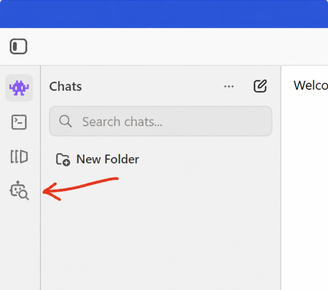 This will pop up a modal window with a search bar in the top left. Into that, type
gemma 4 e2b
The search results below it will update in realtime and once you’ve finished typing the top result will likely be the verified publisher result from Google.
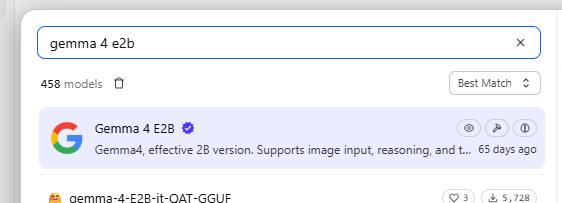
Click on that and the details will be presented to the right hand side.
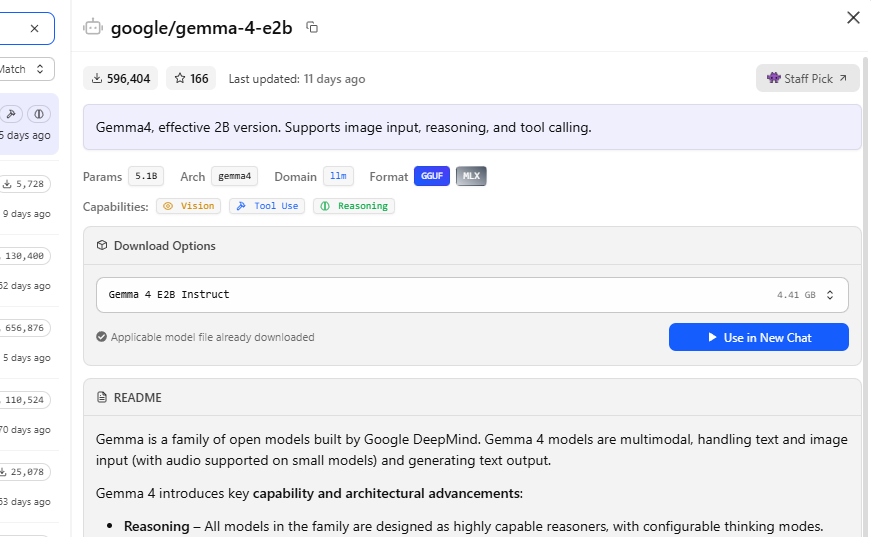
Which download option?
For every model there tends to be a few different variants - different ‘quantizations’. These are presented in the download selector. For now, select the smallest file size and click download. It should be around 4GB.
I’ll get into quantizations and what they are all about in a future blog, once I actually understand that myself.
Once downloaded, the download button itself should turn into a ‘use in new chat’. Click it.
If you have navigated away from that screen, you can just jump into the next menu - the one above called ‘LLMs’ and select it from the list. Once it’s selected a panel will appear to the right containing a ‘use in new chat’ button at the top. Click it.
After a pause whilst it loads the model you will be able to type questions in to prompt window at the bottom of the screen and read the responses at the top.
Say hello!
So… I did what you told me… what did I actually accomplish?
You got local AI up an running!
LM Studio is a bundle of software that makes it easy to get going. You downloaded a model, you started up an inference engine to make it accessible and you started chatting with it by sending it messages (or prompts) and getting responses.
The response time may be anything from
- faster than you can read/type, to
- slower than talking to a teenager with ADHD that keeps getting distracted by their phone buzzing,
depending on your hardware.
The model: the heavy box of numbers
The model is the part people usually talk about first: Qwen, Llama, Mistral, DeepSeek, Gemma, Phi and the rest of the alphabet soup. Strictly speaking, a model is a trained set of weights. Less strictly, it is the thing you download that turns electricity into plausible paragraphs.
For local use, models usually arrive in a few forms:
- A full-precision or half-precision model, often too large for normal home hardware.
- A quantized model, where the weights have been compressed so they fit into less VRAM or RAM.
- A model packaged for a particular inference engine, such as GGUF files for llama.cpp.
- A specialist model tuned for coding, chat, reasoning, tool use, long context, instruction following or some other fashionable disappointment.
The headline number matters, but it is not the whole story. A 7B model is usually easier to run than a 30B model. A 70B model will generally be more capable than a 7B model if you can actually run it well. But architecture, training data, quantization quality, context length, prompt format and runtime settings can make a supposedly bigger model feel worse than a smaller one.
For beginners, the useful question is not “what is the biggest model I can download?” It is “what is the biggest model I can run at an acceptable speed without making my machine miserable?”
Hugging Face: the parts counter
Hugging Face is where a lot of local AI begins, and this is the site that LM Studio actually searches and downloads from. It is part model catalogue, part GitHub for neural networks, part hardware stress test disguised as a website.
You will use it to find model repositories, read model cards, compare variants, check licences, download quantized files and work out whether the thing you are about to run was intended for chat, coding, embeddings, image generation or something else entirely.
The model card is worth reading. It normally tells you:
- What the model is for.
- What base model it came from.
- What prompt format or chat template it expects.
- What licence applies.
- What context length it claims to support.
- Whether it has been tuned for tools, instructions, code or general chat.
- Whether there are safety or usage caveats.
The problem is that Hugging Face is not curated like an app store. You can find excellent official releases, careful community quantizations, abandoned forks, broken conversions, misleading benchmarks and files named as if a committee of graphics card enthusiasts lost a bet. That is normal. Treat it like a parts counter, not a recommendation engine.
At minimum, learn to recognise model size, quantization, file format and licence before clicking download. Your future self, staring at a 36 GB file that does not fit anywhere useful, will appreciate it.
The inference engine: the bit that makes the model talk
The inference engine is the runtime. It loads the model, manages memory, accepts prompts and generates tokens. This is where local AI becomes engineering rather than shopping.
Common examples include llama.cpp, LM Studio’s runtime, vLLM, Transformers, Text Generation WebUI and Ollama. For a lot of home and enthusiast use, llama.cpp sits near the centre because it runs GGUF models well, supports CPU and GPU offload, exposes a server API, and gives you enough flags to both solve and create problems.
The inference engine controls practical things like:
- How many layers are offloaded to the GPU.
- How much context the model can use.
- How the key-value cache is stored.
- Whether flash attention is used.
- Which chat template wraps the prompt.
- How sampling behaves.
- Whether the server exposes OpenAI-compatible endpoints.
- Whether metrics are available.
This layer matters because local AI performance is not just “GPU good, model big.” A poorly configured runtime can make a capable model crawl. A mismatched chat template can make a good model sound concussed. A context length that looks impressive in a command line can quietly eat the memory you needed for the model itself.
The runtime is the engine bay. You do not need to understand every hose on day one, but you do need to know that the hoses exist.
Hardware limits: VRAM is where optimism goes to negotiate
Cloud AI sells the illusion that models are weightless. Local AI immediately reintroduces physics.
The most important limit is usually VRAM. If the model and its working memory fit on the GPU, inference can be fast. If only part of the model fits, the CPU and system RAM get involved. That can still work, especially with quantized models, but performance changes dramatically. A model that feels magical at 30 tokens per second can feel like dictation from a tired fax machine at 1 token per second.
You need to think about:
- Model weights: the core files loaded into memory.
- Quantization: compression that reduces memory use, sometimes at a quality cost.
- Context length: how much conversation or source code the model can attend to.
- KV cache: memory used to remember that context during generation.
- GPU offload: how much of the model runs on the GPU.
- System RAM: useful when VRAM is not enough, but usually slower.
- CPU speed and memory bandwidth: increasingly relevant when layers spill out of VRAM.
- PCIe bandwidth: relevant when data has to move between CPU memory and GPU.
The annoying but useful rule: local AI is not only about buying the biggest GPU. It is about matching model size, quantization, context and runtime settings to the hardware you actually have.
If you have 8 GB of VRAM, you can still do useful things, but you will spend more time choosing smaller or more heavily quantized models. With 16 GB, the world opens up noticeably, especially for coding models in the 7B to 14B range and some carefully chosen larger quantized models. With 24 GB or more, you get more room for bigger models, longer context and fewer compromises. None of this makes system RAM irrelevant. It just means VRAM is the expensive bit everyone argues about for a reason.
Model size: bigger is not always better, but it is usually hungrier
Model size is a proxy for capability, not a guarantee. Bigger models tend to know more, reason better and follow complex instructions more reliably. They also require more memory, run slower and punish weak configuration.
For local AI, model choice is always a three-way trade:
- Capability: how good is the model for your task?
- Speed: can you stand using it interactively?
- Fit: does it actually fit in memory with the context you need?
Coding adds another wrinkle. A small model can be surprisingly useful for autocomplete, syntax fixes and small refactors. A larger model may be better for architecture, cross-file reasoning and debugging, but only if your client and runtime can feed it enough context. A theoretically smarter model with a tiny usable context window may lose to a smaller model that can actually see the files involved.
MoE models complicate the picture further. A mixture-of-experts model may have a large total parameter count but only activate a subset of parameters for each token. That can help performance and quality, but it does not magically remove memory, runtime or implementation constraints. The marketing number and the experience on your desk can be very different things.
Clients: the model is not the product
Once the inference engine is running, you still need somewhere to use it. That is the client layer.
Clients range from beautifully simple to “why is it editing twelve files?” They include:
- Terminal chat clients.
- Desktop chat apps.
- Web UIs.
- IDE extensions.
- Coding agents.
- Pi-style terminal agents.
- Forge-like developer tools.
- Local dashboards and playgrounds.
- Scripts that call a local OpenAI-compatible endpoint.
This layer changes the experience more than beginners expect. The same model can feel completely different in a plain terminal, a polished chat UI, an IDE extension and an agentic coding tool. The client decides how much context is sent, how files are selected, how tool calls are represented, where prompts live, how retries work and how much damage a confident model can attempt before asking permission.
For coding, the client might matter as much as the model. A good client can package the right files, maintain a useful conversation history, expose tools safely and make small edits easy to review. A bad client can drown the model in irrelevant context, break tool calling, or turn a one-line change into a local weather system.
The practical advice is to try several. Terminal clients are excellent for understanding what is really happening. Desktop apps are good for exploration. IDE integrations are useful for focused work. Agents are powerful, but they should earn your trust slowly.
MCP: the tool plugboard
MCP, the Model Context Protocol, is one of the more useful bits of recent AI plumbing. It gives clients a standard-ish way to connect models to tools, resources and external systems.
In a local AI setup, an MCP server might expose:
- Files and project context.
- Search.
- Git operations.
- Database queries.
- Browser automation.
- Notes, documents or internal knowledge.
- Custom business APIs.
The model does not magically “have” these powers. The client and MCP server cooperate to describe available tools, route tool calls, return results and keep the human somewhere near the steering wheel. The local model is still just predicting text, but the surrounding system can turn some of that text into actions.
This is where local AI starts to feel less like a chatbot and more like a workbench. The model becomes one part of a loop: read context, decide, call a tool, observe the result, revise the plan, act again. That loop is useful. It is also where permissions, logging and review become important, because a local agent with filesystem tools is not a toy.
The system prompt: the hidden workshop manual
The system prompt is the instruction layer that shapes the model’s behaviour before your message arrives. It tells the model what role it is playing, how to handle tools, what style to use, what safety rules apply and what assumptions to make about the environment.
In cloud tools, the system prompt is mostly hidden. In local setups, it may be visible, editable, scattered across configs or accidentally wrong. That makes it powerful and irritating in equal measure.
For local coding clients, the system prompt can define things like:
- Whether the model should ask before editing.
- How it should use tools.
- How much explanation it should provide.
- Whether it should prefer small patches.
- What project conventions matter.
- How to handle tests, errors and uncertainty.
A good system prompt will not turn a weak model into a genius. But a bad one can absolutely make a good model behave badly. If tool use is broken, responses look like raw JSON, or the model keeps narrating actions instead of taking them, the prompt and client protocol are among the first places to look.
Where to next?
- My local AI setup
- Sparse vs dense models
- Coding clients
- llama.cpp configs


